After logging in...
- Scroll to the area below "Upload some (at least 1) pictures of yourself"
- Select "Click to upload" in the light blue box.
- Select the photo you would like to upload from the image files saved on your
computer, smartphone or tablet. - Click "Edit" to rotate, resize or crop your photo (click the arrow to rotate, the magnifying glass to zoom in/out).
- Make sure to SAVE before moving on.
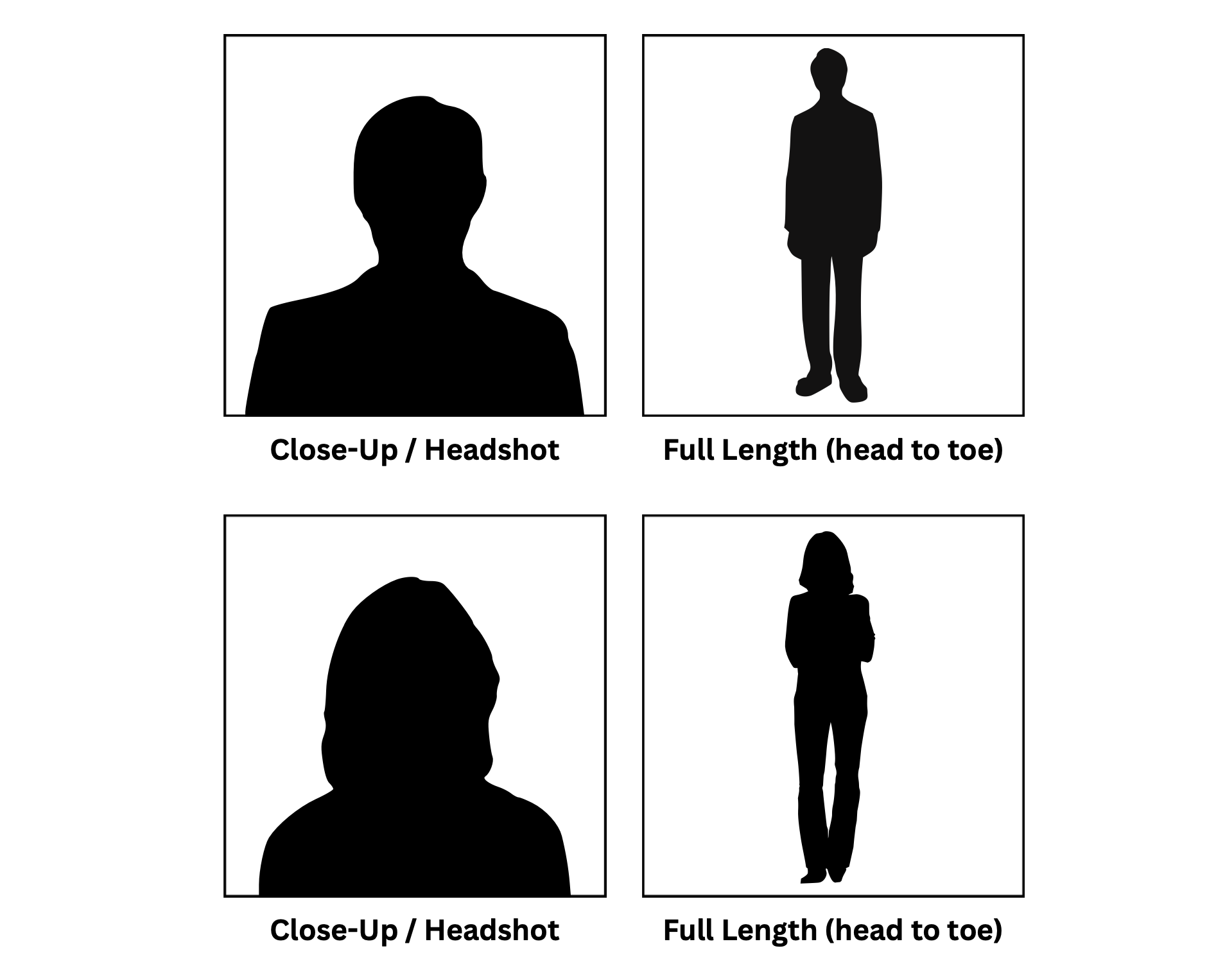
***Please choose clear, current photos (not professional headshots). You should upload a close-up and a full length shot (see examples below).
All photos must be in color. Please avoid extreme angles, filters and photoshop.
You MUST be the only person in the photo(s) you upload.
You should not be wearing a hat, sunglasses or anything that conceals your face.
If you have long hair, please make sure that at least one photo shows the current length.
Was this article helpful?
That’s Great!
Thank you for your feedback
Sorry! We couldn't be helpful
Thank you for your feedback
Feedback sent
We appreciate your effort and will try to fix the article